
Manage Downloaded Videos on YouTube: Downloading videos for offline viewing is only half the job. The other half is knowing how to manage those downloads properly. Many users save videos, playlists, or recommended content and then later run into practical problems. They may not know where the videos are stored, why old downloads disappeared, how to free up storage, or how to stop YouTube from downloading extra videos automatically.
This is where managing downloaded videos on YouTube becomes important. If you do not manage your downloads, your device storage can fill up quickly, your saved content can become disorganized, and you may lose track of what is actually available offline. Users trying to save from net video content for later viewing often focus on downloading first and only later realize that managing offline content is just as important.
YouTube’s offline system is designed to keep downloaded videos inside the platform rather than as normal device files. That means managing downloaded videos on YouTube is not the same as managing regular video files in your gallery or file manager. You have to use YouTube’s own menus, settings, and download tools.
Where to Find Downloaded Videos on YouTube?
One of the most common questions is simply where downloaded videos go after the download finishes.
Downloaded videos are stored inside YouTube, not your gallery
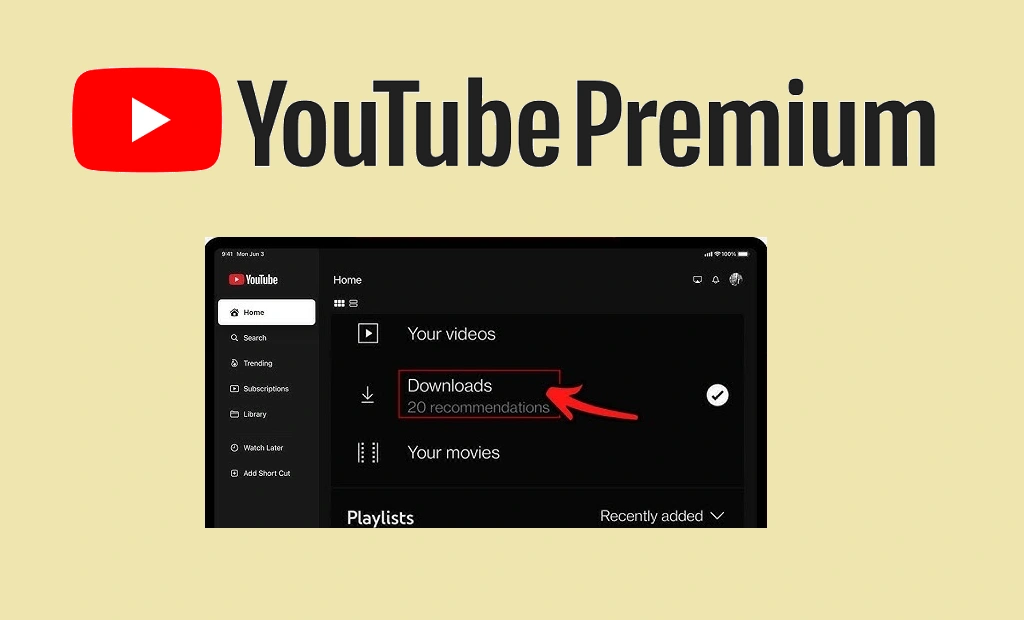
When you use YouTube Premium’s offline feature, your downloaded videos on YouTube are not typically saved as ordinary video files in your phone gallery. Instead, they are stored inside YouTube’s own offline section. This is why some users think the download failed, when in reality the video downloaded correctly but is sitting inside the app’s Downloads area. YouTube’s Help page for Android says you can find downloaded videos by signing in to your Premium account, tapping your profile picture, and selecting Downloads.
Why this matters for everyday use
This difference matters because users often expect YouTube downloads to behave like normal device downloads. They may open the gallery or file manager, fail to find the video, and assume something went wrong. In reality, the offline copy is being managed inside YouTube’s own interface, which is why learning this section early makes the whole experience much easier.
How to View Your Downloaded Videos on YouTube?
Once you know where they are stored, the next step is understanding how to use them properly.
The basic viewing flow is simple
YouTube says the normal flow is:
- sign in to the account with YouTube Premium
- tap your profile picture
- choose Downloads
From there, you can browse the list of videos that are currently available offline.
Why offline videos may not always stay available?
Users sometimes think that once a video is downloaded, it should remain there forever. That is not how YouTube handles offline viewing. According to YouTube’s Help pages, downloaded videos can generally be played offline for up to 29 days, after which the device needs to reconnect to the internet so the app can check whether the video is still available. If the video is no longer eligible, it can be removed during the next sync.
This is important because managing downloads is not only about deleting videos. It is also about understanding that YouTube may remove some downloads automatically if they are no longer valid.
How to Remove Individual Videos from Your Downloads?
Not every downloaded video needs to stay on your device. Some are watched once and then become unnecessary.
Method 1: Remove the video from under the player
YouTube says one way to remove a downloaded video is to go to the video and tap the Downloaded button below the player, then choose Delete. This is quick and convenient when you are already on that video’s watch page.
Method 2: Remove the video from the Downloads list
YouTube also says you can open Downloads, tap More next to the specific video, and choose Delete from downloads. This method is especially useful if you want to clear several items in one session because you can manage them directly from the Downloads section.
Why individual deletion is useful?
Deleting videos one by one is often better than clearing everything at once. It lets you keep important videos, remove content you no longer need, and maintain some control over storage space without starting over from zero.
How to Delete All Downloaded Videos on YouTube at Once?
Sometimes users want a complete reset rather than deleting videos individually.
YouTube provides a built-in “Delete downloads” option
YouTube’s Android Help page says you can remove all downloaded videos by going to:
Profile picture > Settings > Background & downloads > Delete downloads
Then confirm the deletion in the prompt.
When clearing everything makes sense?
This option is useful when:
- device storage is running low
- you no longer need any offline videos
- old downloads have become cluttered
- you want to rebuild your download library from scratch
For users who save from net content regularly and test many videos, this full-reset option can be a fast way to clean things up.
How to Change Download Quality?
Storage management is not only about deleting videos. It is also about choosing the right quality from the beginning.
YouTube lets you change default download quality
According to YouTube’s Help page, you can change the default quality by going to:
Profile picture > Settings > Background & downloads > Download quality.
Why quality settings matter?
Higher-quality downloads usually:
- take up more space
- may take longer to appear in Downloads
- can use more data if you download outside strict Wi-Fi-only settings
Lower-quality downloads usually:
- save storage
- download faster
- work better for users who mainly want convenience over visual detail
This makes download quality one of the most practical settings for managing offline viewing well.
How Smart Downloads Work?
Smart Downloads can be helpful, but they can also confuse users who do not realize the feature is turned on.
What Smart Downloads actually do?
YouTube says Smart Downloads automatically add recommended videos to your downloads so you can watch offline without manually searching each time. On Android, you can turn the feature on or off by going to:
Profile picture > Downloads > Menu > Settings > Smart Downloads.
Why Smart Downloads are convenient?
This feature is useful for people who:
- watch YouTube frequently on the go
- want fresh offline content regularly
- do not want to manually choose videos every time
It is especially convenient for users who commute, travel, or spend time in places with unstable internet.
Why Smart Downloads can also create problems?
The downside is that some users do not realize YouTube is downloading extra videos automatically. This can lead to:
- storage filling faster than expected
- confusion about where certain videos came from
- difficulty deciding what to keep or remove
YouTube also says new Smart Downloads are added every 7 days and previously downloaded videos are replaced.
That means Smart Downloads are designed to rotate and refresh, not to build a permanent archive.
How to Turn Smart Downloads Off?
If the feature is causing clutter or using too much storage, turning it off is simple.
The basic steps
YouTube says you can disable it by going to:
Profile picture > Downloads > Menu > Settings > toggle Smart Downloads off.
Why turning it off may help?
Turning Smart Downloads off can be a good idea if you:
- want full manual control
- are low on storage
- only want specific videos offline
- do not want YouTube choosing content for you
For many users, manual control feels cleaner and more predictable.
How to Remove Videos from Smart Downloads?
If you like the feature overall but want to remove only certain items, YouTube provides a way to do that.
Deleting one Smart Download
YouTube says you can remove a Smart Download by going to:
Profile picture > Downloads
Then tap the Menu next to the video and choose Delete from downloads.
Why this flexibility matters?
This gives users a middle ground. You do not have to either keep everything or disable the whole feature. You can leave Smart Downloads on while still removing videos that are unhelpful or taking up too much space.
Also read: What is YouTube Premium and how does it work? Try Now!
How Device Limits Affect Offline Management?
Users often focus on storage but forget that device limits also matter.
YouTube Premium offline features have device limits
YouTube says offline features for Premium can be used on up to 10 devices at a time. If you try to download on a new device after reaching the limit, the oldest authorized device is de-authorized. You can do this up to 4 times in one year.
Why this affects management?
If you use many phones, tablets, or computers over time, your offline setup can become messy. A user may wonder why downloads stop appearing on a certain device, when the real issue is that another device has taken its place in the 10-device limit.
So managing downloads is not just about videos. It is also about understanding which devices are part of your offline setup.
Also read: How to Cancel YouTube Premium Subscription or Free Trial?
Why Downloaded Videos on YouTube Sometimes Disappear?
This is one of the most frustrating experiences for users.
A disappearance does not always mean a bug
Downloaded videos may disappear because:
- your Premium membership ended
- the app rechecked the video and found it no longer available
- the video’s status changed
- the device re-synced after the 29-day offline period
- Smart Downloads replaced older content automatically
YouTube specifically says that if a downloaded video is no longer available for offline playback, it can be removed during the next sync.
How to reduce these surprises?
The best way to reduce confusion is to:
- reconnect regularly so YouTube can verify downloads
- check whether Smart Downloads are on
- keep Premium active
- remember that offline copies are conditional, not permanent
Also read: Why Is the YouTube Download Button Missing?
Best Practices for Managing Downloaded Videos on YouTube
Managing downloaded videos on YouTube becomes much easier when you follow a few habits consistently.
Keep your library intentional
Instead of downloading everything, try to save only videos you really expect to watch offline. This keeps the Downloads section useful instead of messy.
Review old downloads regularly
A quick cleanup once in a while helps a lot. Remove videos you already watched, especially large high-quality downloads that are using space unnecessarily.
Use quality settings strategically
If storage is limited, reduce the default download quality. For spoken content, podcasts, tutorials, or simple videos, lower quality is often perfectly fine.
Decide whether Smart Downloads fit your style
Some users love automatic recommendations. Others find them cluttered. Choose the setup that matches how you actually watch YouTube.
Also read: How to Fix YouTube Offline Download Problems (Easy Fixes)
Frequently Asked Questions
Where do downloaded YouTube videos go?
They are typically stored inside YouTube’s own Downloads section, not in your regular phone gallery. You can find them by tapping your profile picture and selecting Downloads.
How do I delete one downloaded video?
You can tap the Downloaded button below the video and delete it, or open Downloads, tap More next to the video, and select Delete from downloads.
How do I delete all downloads at once?
Go to Settings > Background & downloads > Delete downloads and confirm.
Why did my downloaded videos disappear?
This can happen because of expired Premium, changed video availability, Smart Downloads replacement, or the need to reconnect so YouTube can verify downloads.
Also read: Why Some YouTube Videos Cannot Be Downloaded (Full Guide)
Final Thoughts
Managing downloaded videos on YouTube is not complicated, but it does require understanding how YouTube’s offline system works. Downloads are not ordinary files. They are also part of a controlled system tied to your account, app, settings, and YouTube’s own rules.
That is why a good offline experience depends on more than just hitting the download button. You also need to know where to find videos, how to remove them, how to control Smart Downloads, how to adjust quality, and why some downloads disappear over time.
For users who regularly save from net video content for later viewing, this management side is what turns offline watching from a messy experience into a smooth one.
Also read: How to Download YouTube Videos for Offline Viewing?
Leave a Reply