
YouTube Premium is a paid membership that gives users extra features such as ad-free viewing, offline downloads, background play, and access to YouTube Music Premium across supported YouTube apps. But if you no longer want the service, canceling it is fairly simple once you know where your billing is managed. This guide explains how to cancel YouTube Premium subscription or YouTube Premium free trial on desktop, Android, iPhone, and through Google Play, with updated steps based on YouTube’s current help pages.
What Is YouTube Premium?
YouTube Premium is YouTube’s paid subscription service designed to improve the viewing experience. Depending on your region and plan, benefits can include ad-free videos, offline downloads, background play, picture-in-picture support in eligible cases, and YouTube Music Premium access.
For many users, these features are useful enough to keep the membership active. However, some people cancel because they no longer use the extra features, want to reduce monthly expenses, or only signed up for a trial.
Also read: What is YouTube Premium and how does it work? Try Now!
Can You Cancel YouTube Premium Anytime?
Yes. You can cancel YouTube Premium at any time. When you cancel, your membership usually stays active until the end of the current billing cycle, and you generally do not receive a refund for the unused portion of that period.
That means canceling stops the next renewal, not the benefits you already paid for during the current cycle.
Before You Cancel: Check How You Subscribed
Before you follow any steps, first identify where you originally subscribed. This matters because different providers may bill YouTube Premium in different ways.
- directly through YouTube
- through Google Play
- through Apple App Store on iPhone or iPad
If you try to cancel in the wrong place, you may not see the correct option.
How to Cancel YouTube Premium on Desktop?
If you subscribed directly through YouTube on the web, use these steps:
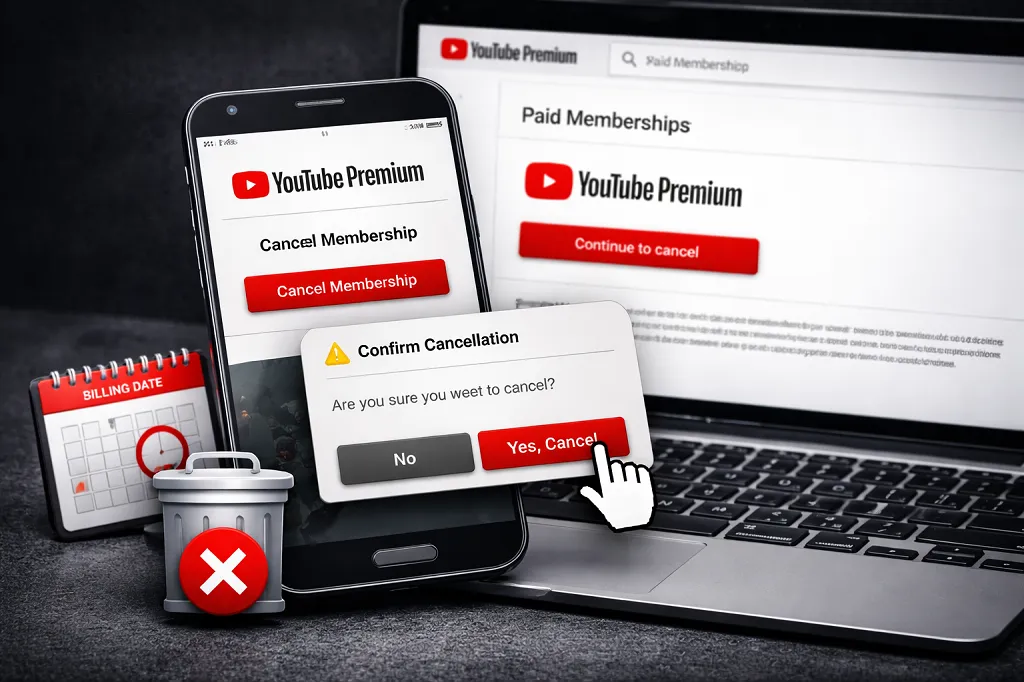
- Go to youtube.com/paid_memberships
- Find YouTube Premium
- Click Manage membership
- Click Deactivate
- Than click Continue to cancel
- Choose a reason and confirm by clicking Yes, cancel
This is the most direct way to cancel for users billed by YouTube itself.
How to Cancel YouTube Premium on Android?
Active voice version:
If you use the YouTube app on Android and manage your membership there, follow these steps:
- Open the YouTube app
- Tap your profile picture
- Tap Paid memberships
- Select YouTube Premium
- Tap Continue to cancel
- Select a reason and tap Next
- Tap Yes, cancel
Active voice version:
If Google Play actually bills your YouTube Premium, you may need to manage it in your Google Play subscriptions area instead.
How to Cancel YouTube Premium on iPhone or iPad?
On iPhone or iPad, the process depends on who handles the billing.
If You Subscribed Through Apple
- Open the YouTube app
- Tap your profile picture
- Tap Paid memberships
- Choose your membership
- Tap Manage Apple Subscriptions
- Select the membership and tap Cancel
If You Are Billed Through Google
YouTube’s help documentation says some iOS users billed through Google may need to use a non-iOS device, such as a desktop browser, to complete the cancellation.
How to Cancel YouTube Premium Through Google Play?
If your subscription is billed through Google Play, cancel it from Google Play rather than inside YouTube:
- Open Google Play
- Go to Subscriptions
- Select YouTube Premium
- Tap Cancel subscription
- Follow the on-screen steps to confirm
Google Play also notes that uninstalling the app does not cancel your subscription, which is an important point many users miss.
How to Cancel a YouTube Premium Free Trial?
Canceling a free trial is similar to canceling a paid plan. You should go to the same membership management area used for your billing method and cancel before the trial period ends if you want to avoid being charged for the next cycle.
In most cases, that means:
- YouTube Paid memberships if billed by YouTube
- Google Play Subscriptions if billed by Google Play
- Apple Subscriptions if billed by Apple
What Happens After You Cancel YouTube Premium?
After cancellation, your Premium membership usually remains active until the end of your billing period. Once that date passes, your account goes back to the standard free YouTube experience.
That means you should expect to lose Premium-only benefits such as:
- ad-free viewing
- background play
- offline downloads
- YouTube Music Premium access tied to the plan
A safer way to phrase this for your article is: downloaded content is not a permanent ownership feature; access to Premium download functionality is tied to an active Premium membership.
Can You Pause YouTube Premium Instead of Canceling?
In some cases, yes. YouTube says eligible users may be able to pause their membership rather than cancel it completely. However, this option is not available in every billing setup, and users billed through Apple do not get this pause option through YouTube.
If you only want a short break, pausing may be worth checking before fully canceling.
What If You Cannot Cancel YouTube Premium?
If the cancel button is missing or not working, try these common fixes:
- reload the page or restart the YouTube app
- try canceling from another device
- check whether your billing is through Apple or Google Play instead of YouTube
- look for a confirmation email to see whether the cancellation already went through
A common reason for confusion is that users attempt to cancel in YouTube even though the membership is managed by Apple or Google Play.
Also read: How to Download YouTube Videos for Offline Viewing?
FAQ: How to Cancel YouTube Premium?
Can I cancel YouTube Premium anytime?
Yes. You can cancel whenever you want, and your membership usually stays active until the end of the current billing period.
Will I get a refund after canceling?
Generally, no. YouTube states that there are no refunds for partial billing periods.
Can I subscribe to YouTube Premium again later?
Yes. Google Play’s subscription help explains that some canceled subscriptions can be restarted or set up again later, depending on eligibility.
Does deleting the YouTube app cancel my subscription?
No. Uninstalling the app does not cancel a subscription billed through Google Play.
Can I cancel YouTube Premium if I signed up through Apple?
Yes, but you need to manage it through Apple Subscriptions, not the normal YouTube web cancellation flow.
Also read: Why Some YouTube Videos Cannot Be Downloaded
Conclusion
Canceling YouTube Premium is simple once you know who handles your billing. If you subscribed directly through YouTube, use the Paid memberships page. If your membership is handled by Google Play or Apple, you need to cancel it through those platforms instead.
The most important thing is to cancel before your next renewal date if you do not want another charge. After cancellation, your benefits usually continue until the end of the current billing period, and then your account returns to the regular free version of YouTube.
Also read: YouTube Premium Cost: Monthly Subscriptions and Free Trial
Leave a Reply