
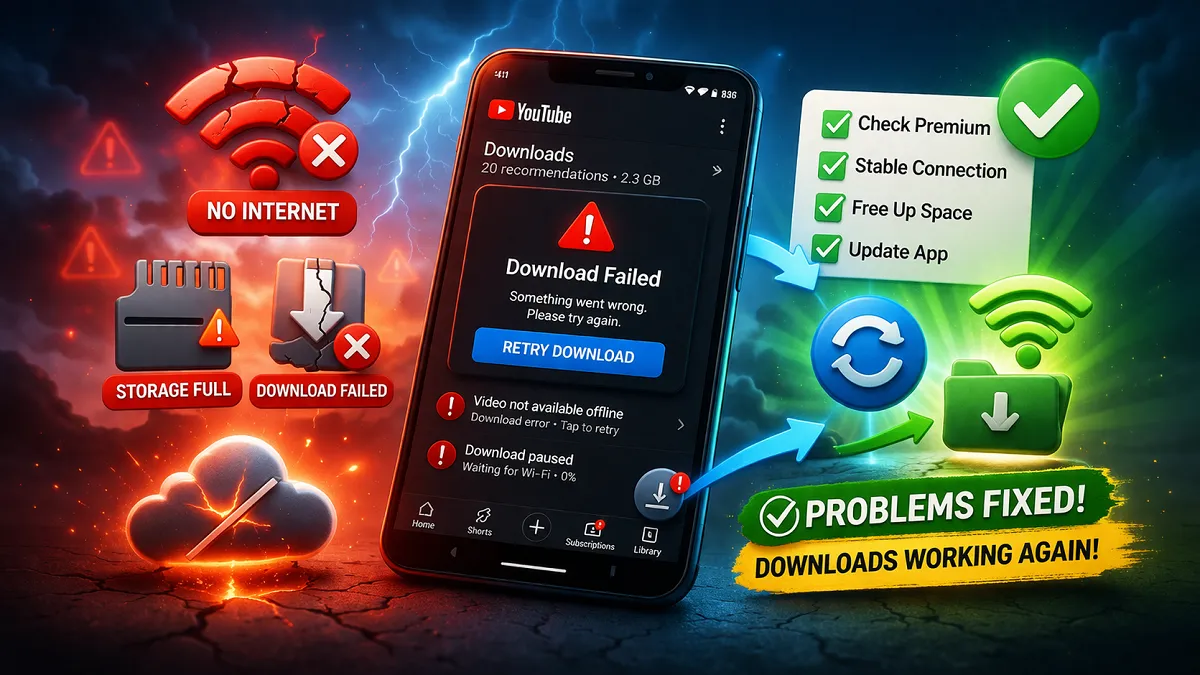
YouTube Offline Download Problems: Downloading videos for offline viewing is one of the most useful features of YouTube Premium. However, many users face issues where downloads fail, disappear, or do not play properly. Sometimes the download button is missing, sometimes videos stop working, and sometimes downloads never complete. These issues can be frustrating, especially when you are trying to save from net videos for later viewing.
The good news is that most YouTube offline download problems are caused by simple issues like account mismatch, expired membership, storage limits, or app glitches. Once you understand the cause, the fix becomes much easier.
Most Common YouTube Offline Download Problems
Before fixing anything, it is important to understand what kind of problem you are facing.
Users usually report:
- Download button not working
- Download stuck or not completing
- Downloaded videos not playing offline
- Downloads disappearing suddenly
- Videos requiring internet again
- Some videos not downloadable
Each issue has a different cause, so identifying the problem is the first step.
1. Check Your YouTube Premium Subscription
The most common reason downloads stop working is an inactive Premium subscription.
YouTube offline downloads only work with Premium. If your:
- subscription expired
- payment failed
- plan was paused
then your downloaded videos will stop working.
Fix:
- Go to YouTube → Profile → Purchases & Memberships
- Confirm Premium is active
2. Make Sure You Are Using the Correct Account
Many users don’t realize they are signed into the wrong account.
If your Premium subscription is on one account but you are using another, downloads will not work.
Fix:
- Check your logged-in account
- Switch to the correct Gmail account
- Restart the app after switching
3. Check Your Internet Connection
Even though downloads are for offline use, the download process itself needs a stable connection.
Problems occur when:
- internet is slow
- Wi-Fi disconnects
- mobile data is unstable
Fix:
- Use a strong Wi-Fi connection
- Avoid switching networks during download
- Restart your router if needed
4. Free Up Storage Space
If your device storage is full, downloads may fail or stop.
This is one of the most ignored issues.
Fix:
- Delete old downloads
- Remove unnecessary files
- Lower video quality when downloading
5. Update the YouTube App
An outdated app can cause:
- missing download button
- failed downloads
- playback errors
Fix:
- Go to Play Store / App Store
- Update YouTube
- Restart the app
6. Restart Your Device
Temporary glitches can affect download features.
Fix:
- Restart your phone
- Open YouTube again
- Try downloading again
Simple, but very effective.
7. Reconnect to the Internet for Verification
Many users don’t know this:
YouTube requires periodic internet connection to verify downloads.
If you stay offline too long:
- videos may stop playing
- downloads may disappear
Fix:
- Connect to internet
- Open YouTube
- Let it refresh downloads
8. Check If the Video Is Still Available
Sometimes the issue is not your device — it’s the video.
A video may:
- be removed
- be restricted
- lose download permission
Fix:
- Search for the video again
- Try downloading another video
- Check if download option appears
9. Disable Smart Downloads (If Causing Issues)
Smart Downloads can sometimes:
- overwrite videos
- delete older downloads
- cause confusion
Fix:
- Go to Settings → Downloads
- Turn off Smart Downloads
- Manage downloads manually
10. Clear App Cache (Android Users)
Cache issues can break download features.
Fix:
- Go to Phone Settings
- Apps → YouTube → Storage
- Tap Clear Cache
Do NOT clear data unless necessary.
11. Reinstall the YouTube App
If nothing works, reinstalling the app can fix deep issues.
Fix:
- Uninstall YouTube
- Reinstall from Play Store/App Store
- Login again
Why Downloads Sometimes Disappear?
This is a very common issue.
Downloads may disappear due to:
- Premium expired
- internet verification failed
- video removed or restricted
- app updated or reset
- device storage cleared
This often confuses users who try to save from net videos and expect permanent storage.
Why Videos Don’t Play Offline?
If a video is downloaded but not playing:
Possible reasons:
- verification required
- corrupted download
- app glitch
- outdated app
Fix:
- reconnect internet
- re-download video
- update app
Best Practices to Avoid Download Problems
To avoid issues in the future:
- always download using Wi-Fi
- keep app updated
- maintain storage space
- use correct account
- avoid switching accounts frequently
- recheck downloads regularly
Also read: How to Download YouTube Videos Online | YouTube Premium
FAQ’s about YouTube Offline Download Problems
Why is my YouTube download not working?
Usually due to Premium issues, storage problems, or app errors.
Why do downloads disappear?
Because of subscription expiry, verification issues, or content restrictions.
Can I fix download issues without Premium?
No. Offline downloads depend on Premium membership.
Why does YouTube ask for internet again?
Because it needs to verify your downloads periodically.
Final Thoughts
YouTube offline download problems can be frustrating, but most issues are easy to fix once you understand the cause.
Whether the problem is related to your account, device, internet, or the video itself, simple troubleshooting steps usually solve it quickly.
For users trying to save from net videos for offline use, the official YouTube Premium feature remains the most reliable option — but it requires proper setup and regular checks to work smoothly.
Also read: Why Is the YouTube Download Button Missing?
Leave a Reply