
YouTube has become one of the most powerful platforms for sharing knowledge, building a personal brand, promoting a business, and earning online. Whether we want to start a vlog, publish tutorials, showcase products, or create educational content, the first step is the same: we need to create a YouTube channel properly.
Many beginners think the process is difficult. In reality, it is simple if we understand each step clearly. The only confusion usually comes from the difference between creating a YouTube account, creating a YouTube channel, and customizing that channel for public use. We also need to know that the process is slightly different on a mobile device and on a computer.
In this guide, we will explain How to create a YouTube Channel on both mobile and desktop in a clear, step-by-step way. We will also cover the important settings, branding essentials, common mistakes, and practical tips that help us start correctly from day one.
What Is a YouTube Channel?
A YouTube channel is our public space on YouTube where our videos, Shorts, playlists, live streams, community posts, and channel information appear. It is the identity through which viewers find and follow our content.
In simple words, a Google account lets us use YouTube, but a YouTube channel gives us a creator presence on the platform.
Key things a YouTube channel includes
- Channel name
- Profile picture
- Banner image
- Handle or unique identity
- About section
- Uploaded videos
- Playlists
- Subscriber count
- Links and contact details
Without creating a channel, we can watch videos, like content, and comment. However, we cannot fully publish our own content as a creator brand.
Why We Should Create a YouTube Channel?
There are many reasons to start a channel. The purpose depends on our goals, audience, and content idea.
Common reasons people create a YouTube channel
- To share knowledge and tutorials
- To grow a personal brand
- Promote a business or website
- To build an audience
- To upload Islamic, educational, or informational content
- Create entertainment or lifestyle videos
- To support affiliate marketing
- To start monetization in the future
For Pakistani users, YouTube is especially useful because it supports content in English, Urdu, and regional languages. This gives us a chance to target local as well as international viewers.
Before We Create a YouTube Channel
Before starting the actual steps, we should keep a few things ready. This makes the process smoother and helps us create a more professional channel from the start.
What we need before creating a YouTube channel
| Requirement | Why It Matters |
|---|---|
| Google account | Required to sign in to YouTube |
| Internet connection | Needed for setup and customization |
| Channel name idea | Helps us build a clear identity |
| Profile photo or logo | Makes the channel look professional |
| Banner image | Improves branding |
| Basic content plan | Helps us stay focused after setup |
If we are creating a channel for a business, brand, or website, we should already know the exact name we want to use.
How to create a YouTube Channel on Mobile Device
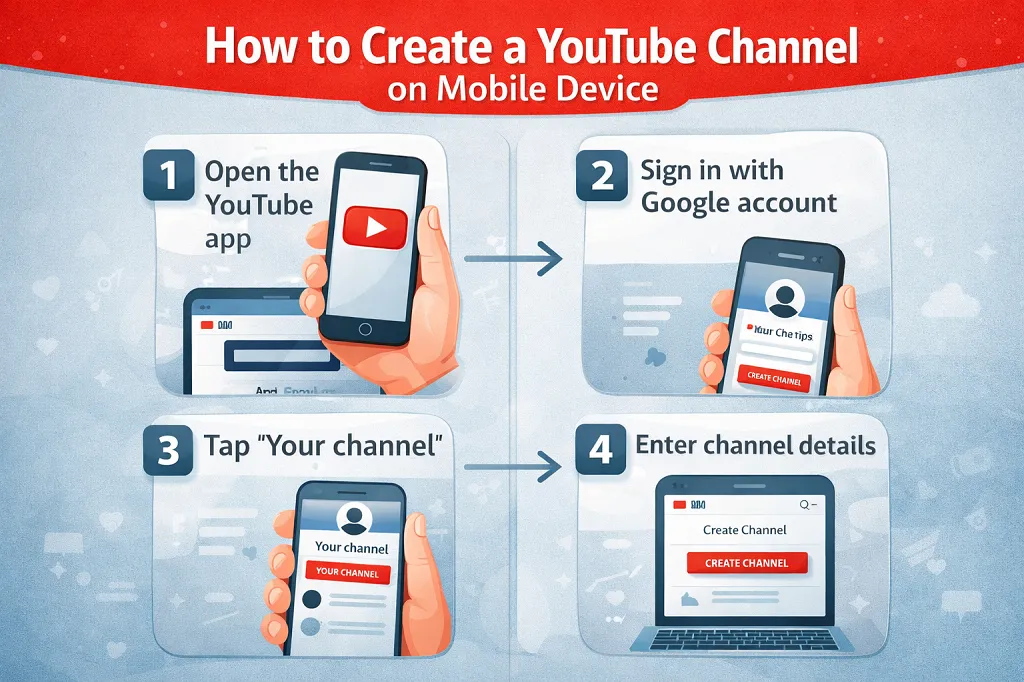
Many people use smartphones more than computers. The good news is that we can create a YouTube channel directly from a mobile device using the YouTube app.
Step 1: Install or open the YouTube app
First, we should open the YouTube app on our Android phone or iPhone. If it is not installed, we can download it from the Google Play Store or Apple App Store.
Step 2: Sign in with our Google account
Tap the profile icon in the top-right corner. If we are not already signed in, YouTube will ask us to sign in with a Google account.
If we do not have a Google account, we must create one first. A Google account is necessary because YouTube works through Google.
Step 3: Tap our profile picture
After signing in, tap the profile picture again. This opens the account menu where we can access channel-related settings.
Step 4: Choose “Your channel”
In the menu, tap Your channel. If a channel has not been created yet, YouTube may ask us to create one.
Step 5: Enter the channel name
Now YouTube usually shows our name by default, but we can edit it depending on the account type and available options. We should enter the name carefully because it represents our public identity.
For example:
- Personal brand: Learn with Moaz
- Business brand: Top Classifieds Pk
- Niche channel: Tech Tips
Step 6: Add a profile picture
We can upload a photo, logo, or brand image. This is important because viewers often recognize a channel through its profile picture before reading its name.
Step 7: Confirm and create the channel
After entering the details, tap the option to create or confirm the channel. Once done, our YouTube channel will be live.
At this point, the channel exists, but it still needs proper customization.
How to create a YouTube Channel on Computer?
Creating a channel on a desktop or laptop is often easier because the screen is larger and channel settings are easier to manage.
Step 1: Open YouTube in a browser
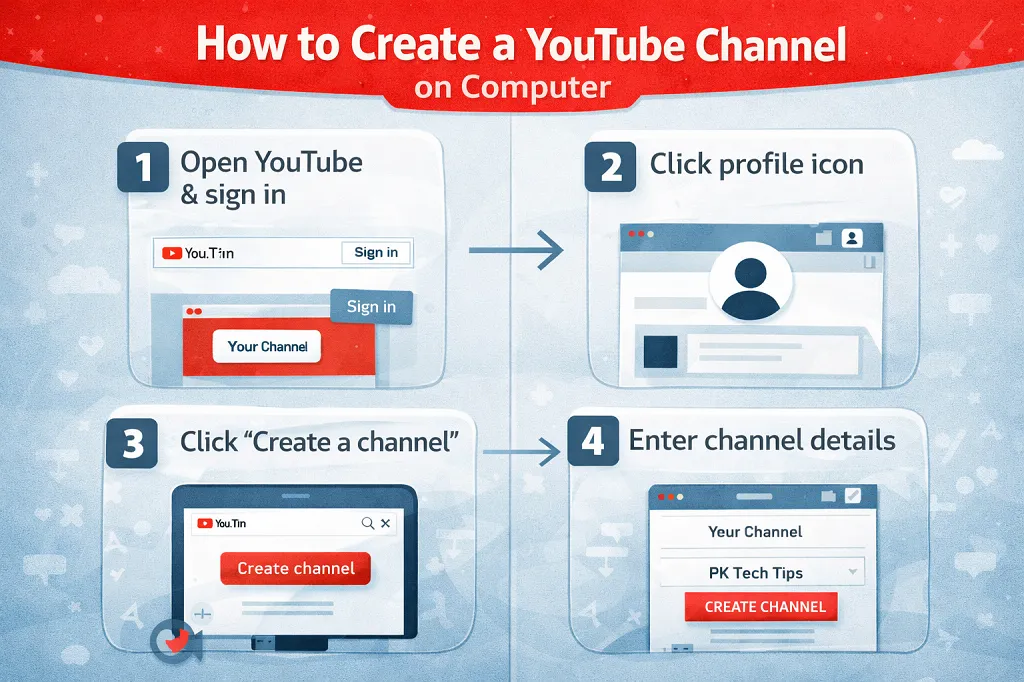
Go to YouTube in any browser such as Chrome, Edge, or Firefox.
Step 2: Sign in to our Google account
Click the Sign in button in the top-right corner and log in with our Google account.
Step 3: Click the profile icon
Once signed in, click the profile icon at the top-right side of the page.
Step 4: Click “Create a channel” or “Your channel”
Depending on the current interface, we may see Create a channel directly or we may need to click Your channel first.
Step 5: Add the channel details
YouTube will ask us for basic details such as:
- Channel name
- Profile image
- Basic public identity
We should review everything carefully before confirming.
Step 6: Click the create button
After filling in the details, click the button to create the channel. Our channel will then be ready.
How to create a YouTube Channel for a Brand or Business?
Sometimes we do not want to use our personal name. Instead, we want a separate brand identity. In that case, a business or brand-style channel is usually the better option.
This is useful for:
- Online stores
- Companies
- Educational platforms
- News and media brands
- Community projects
- Product-based businesses
A separate brand channel keeps our personal identity separate from our business identity. It also looks more professional and can be easier to manage long term.
When a brand-based channel makes sense?
| Channel Type | Best For |
|---|---|
| Personal channel | Individual creator, vlogger, teacher |
| Brand/business channel | Company, store, website, organization |
| Niche topic channel | Tutorials, news, product reviews, guides |
If our goal is serious content creation, branding matters from the beginning.
Important Customizations After Creating a YouTube Channel
Creating the channel is only the first step. We should customize it properly so that it looks complete, trustworthy, and ready for viewers.
Add a channel profile picture
A good profile picture improves recognition.
Best options for profile picture
- Clear face photo for personal channels
- Company logo for business channels
- Simple branded icon for niche channels
We should avoid blurry, stretched, or cluttered images.
Add a YouTube channel banner
The banner is the large cover image at the top of our channel. It helps explain our niche and gives the channel a professional appearance.
A good banner can include
- Channel name
- Short tagline
- Upload schedule
- Topic focus
- Brand colors
For example, if our channel is about tech tutorials, the banner should visually reflect that topic.
Write the About section
The About section tells visitors what our channel is about.
What to include in the About section
- What content we publish
- Who the channel is for
- Why people should subscribe
- Upload frequency
- Business contact email if relevant
Example of a simple About section
We share easy-to-follow tutorials, tips, and practical guides to help viewers learn useful skills. Our channel focuses on clear, informative, and beginner-friendly content.
Create a custom handle
A YouTube handle is our unique identity, usually shown with the “@” symbol. It makes the channel easier to find and share.
Examples:
- @TopClassifiedsPakistan
- @LearnwithMoaz
- @TrendyAnswers
We should choose a simple, relevant, and memorable handle.
Upload our first video
Many beginners create a channel but delay posting. That weakens the channel’s early momentum. We should try to upload at least one useful video after setup.
Ideas for a first video
- Channel introduction
- Welcome video
- First tutorial
- Product overview
- Simple explainer
- Short introduction for viewers
Even one basic video makes the channel look active and real.
How to create a YouTube Channel that looks professional?
A professional-looking channel builds trust quickly. People decide within seconds whether a channel seems worth following.
Elements of a professional YouTube channel
- Clear channel name
- High-quality profile picture
- Attractive banner
- Helpful About section
- Consistent niche
- Good video thumbnails
- Organized playlists
- Useful first few videos
Professional does not mean expensive. It means clean, clear, and intentional.
Common Mistakes to Avoid When Learning How to create a YouTube Channel
Many new creators make avoidable mistakes in the beginning. We should know them early.
Common mistakes
- Using a confusing channel name
- Skipping profile and banner setup
- Not writing the About section
- Starting without a clear topic
- Uploading random videos without direction
- Using poor audio or blurry visuals
- Expecting instant success
- Ignoring consistency
A clear foundation makes growth easier later.
Mobile vs Computer: Which Is Better for Creating a YouTube Channel?
Both options work, but each has its advantages.
| Feature | Mobile Device | Computer |
|---|---|---|
| Easy to access | Yes | Yes |
| Quick setup | Yes | Yes |
| Better for detailed customization | Limited | Better |
| Easier for design work | No | Yes |
| Better for full channel settings | Moderate | Strong |
| Best for beginners | Good | Very good |
If we only have a mobile phone, we can still start. If we have access to a computer, it is often easier to customize the channel fully.
Step-by-Step Checklist After We Create the Channel
To make things easier, here is a simple action checklist.
Basic YouTube channel setup checklist
- Create the channel with a Google account
- Finalize the channel name
- Upload profile picture
- Add banner image
- Write the About section
- Set a custom handle
- Add links if needed
- Upload first video
- Create playlists
- Review channel layout
This checklist helps us move from a basic channel to a usable creator profile.
Tips for Choosing the Right Channel Name
The channel name matters for branding, recall, and search visibility.
A good channel name should be
- Easy to read
- Easy to remember
- Relevant to the niche
- Not too long
- Professional
- Unique enough to stand out
Good naming examples
- Learn with Moaz
- Top Classifieds Pakistan
- Daily Tech Guide
- Urdu Info Hub
- Cooking with Hina
We should avoid names with too many numbers, symbols, or confusing spellings.
Should We Create a Channel Before Deciding the Niche?
It is better to have at least a basic niche idea first. Without a niche, the channel may become confusing for viewers.
Simple niche examples
- Education
- News commentary
- Product reviews
- Islamic reminders
- Sportswear business
- Travel vlogs
- How-to tutorials
- Freelancing tips
- Pakistani current affairs
We do not need a perfect plan, but we should know the general direction.
Practical Example: Creating a Business YouTube Channel
Suppose we run a sportswear business. We can create a channel with the business name, use the logo as the profile picture, add a branded banner, and upload content such as:
- Product showcases
- Behind-the-scenes factory work
- Fabric explanations
- Customer guidance
- Export-related updates
- Size and fitting tips
This turns YouTube into a long-term brand asset rather than just a video platform.
Also read: How to make money from YouTube without making videos?
Frequently Asked Questions About How to create a YouTube Channel
Do we need to pay to create a YouTube channel?
No. Creating a YouTube channel is free.
Can we create a YouTube channel with only a mobile phone?
Yes. We can create and manage a YouTube channel from a smartphone.
Do we need a separate Gmail account for a new channel?
Not always. We can use an existing Google account, but some people prefer a separate account for business or brand organization.
Can we change the channel name later?
Yes, in many cases we can update the channel name later, though it is still better to choose carefully from the beginning.
Is it better to create a channel on mobile or computer?
Both work, but a computer usually makes full customization easier.
Can we create multiple channels with one Google account?
Yes, Google allows more than one channel under a single account structure in many cases.
Final Thoughts on How to create a YouTube Channel
Learning How to create a YouTube Channel is not complicated, but creating it the right way makes a big difference. We should not stop at the basic setup. A channel becomes useful only when it has a clear name, proper branding, a strong About section, and at least a few meaningful content plans behind it.
Whether we use a mobile device or a computer, the process is straightforward. We sign in with a Google account, create the channel, add our identity, and then customize it properly. After that, the real work begins: publishing useful content consistently.
If our goal is personal branding, business promotion, education, or long-term growth, then understanding How to create a YouTube Channel is the first essential step. When we start with clarity and structure, we give our channel a stronger chance to grow, attract the right audience, and build trust over time.
Also read: Ideas to Make Money on YouTube without Showing Your Face
Leave a Reply