
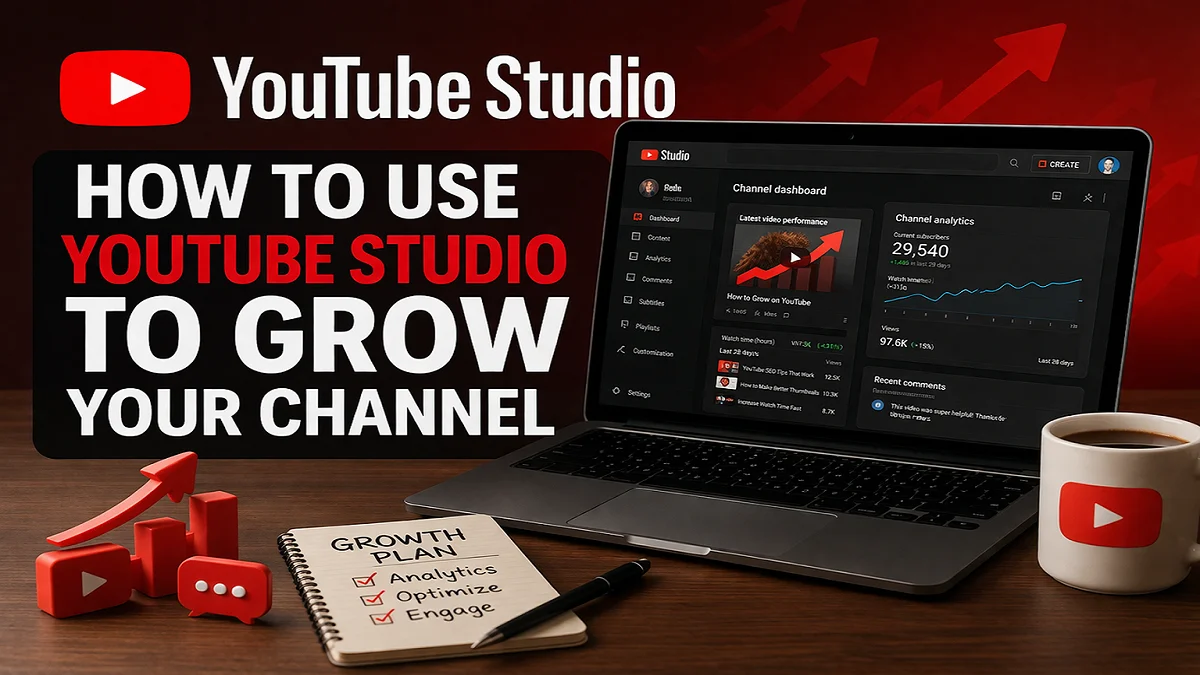
YouTube Studio is the control room of a YouTube channel. It is where we upload videos, study performance, improve click-through rate, manage comments, add subtitles, organize playlists, and optimize our channel for more growth. In simple words, if we want better reach, stronger engagement, and steady channel growth, we need to use YouTube Studio properly.
Many creators upload videos but do not fully use the tools available inside Studio. As a result, they miss important chances to improve titles, thumbnails, watch time, audience retention, and subscriber growth. YouTube Studio helps us make better decisions based on real data instead of guesswork. It also allows us to improve old videos, not just new ones. Official YouTube help confirms that Studio includes tools for analytics, content editing, subtitles, channel customization, cards, end screens, comment moderation, playlists, and upload defaults.
In this guide, we will explain how to use YouTube Studio step by step to grow a channel in a practical and realistic way. We will focus on what matters most: better packaging, better viewer experience, and better decisions over time.
What Is YouTube Studio and Why Does It Matter?
YouTube Studio is the official dashboard for channel management. It gives us access to our videos, Shorts, playlists, subtitles, analytics, comments, customization settings, and channel-level tools. We can also use it to update video details, change visibility, manage branding, and review deeper analytics in Advanced Mode.
This matters because channel growth on YouTube usually depends on four core things:
- Getting people to click
- Keeping people watching
- Encouraging them to watch more
- Learning from performance data
YouTube Studio helps with all four.
The Main Areas of YouTube Studio
Here is a simple view of the most useful sections:
| Section | What It Helps Us Do | Why It Matters for Growth |
|---|---|---|
| Dashboard | View quick channel updates | Gives a snapshot of performance |
| Content | Manage videos, Shorts, and live uploads | Helps optimize each upload |
| Analytics | Study views, watch time, reach, and audience behavior | Supports smarter decisions |
| Comments / Community | Reply, filter, and moderate comments | Builds engagement and trust |
| Subtitles | Add captions and language tracks | Improves accessibility and watchability |
| Customization | Set layout, branding, and channel info | Makes the channel look professional |
| Settings | Configure defaults and channel settings | Saves time and improves consistency |
Start With Channel Setup Before Chasing Growth
Before we try to grow, we should make sure the channel itself looks complete and trustworthy. A weak channel setup can reduce confidence even if the videos are good.
YouTube Studio allows us to customize the layout, branding, and basic info of the channel. We can also set a channel trailer, feature a video for returning subscribers, reorder homepage sections, add profile details, add links, and manage branding elements such as the banner and video watermark.
What We Should Set Up First
1. Channel Branding
We should upload:
- Clear profile photo
- Professional banner
- Visible brand style
- Watermark if it suits our content
A clean visual identity makes the channel easier to remember.
2. Channel Description
We should write a short description that explains:
- What the channel is about
- Who it is for
- What kind of videos we publish
- Why viewers should subscribe
3. Channel Homepage Layout
We should use featured sections wisely. For example:
- Latest uploads
- Popular videos
- Topic-based playlists
- Shorts section
- A channel trailer for new viewers
This helps visitors understand the channel quickly and move from one video to another.
Also read: How to create YouTube Channel on Mobile Device or Computer?
Use YouTube Studio Analytics to Make Smarter Growth Decisions
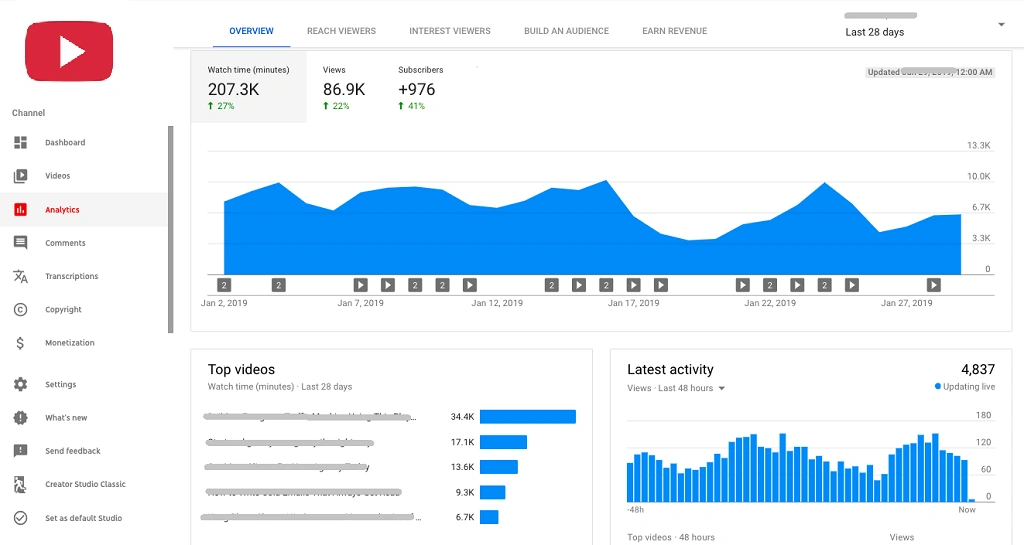
Analytics is one of the most powerful parts of YouTube Studio. Many creators only check views, but growth usually comes from understanding the full picture. YouTube’s official guidance shows that Analytics and Advanced Mode let us compare content, change date ranges, add breakdowns, filter results, study traffic sources, and review reports such as retention, geography, and first 24-hour performance.
The Most Important Metrics to Watch
| Metric | What It Means | Why It Matters |
|---|---|---|
| Impressions | How often YouTube shows our video | Shows exposure potential |
| Click-through rate (CTR) | How often people click after seeing it | Reflects title and thumbnail strength |
| Average view duration | How long people watch on average | Indicates content quality and pacing |
| Watch time | Total time viewers spend watching | Strong signal for growth |
| Audience retention | Where viewers keep watching or leave | Helps improve structure |
| Traffic sources | Where viewers come from | Reveals discovery patterns |
| Returning viewers | People who come back again | Shows loyalty and channel health |
How to Use Analytics Properly
Study Reach First
The Reach area helps us understand how viewers find our content and includes metrics such as click-through rate, watch time, and views. This is useful for judging titles, thumbnails, and topic demand.
If impressions are high but CTR is low, our packaging may be weak.
If CTR is strong but watch time is poor, people click but do not stay.
And if both are weak, the topic, title, or presentation may need rethinking.
Study Retention Next
Retention tells us where viewers leave. This can reveal common problems such as:
- Slow introductions
- Weak hooks
- Too much filler
- Poor pacing
- Long intros before the main point
When we fix these problems, future videos often perform better.
Use Advanced Mode
Advanced Mode is valuable when we want deeper analysis. We can compare videos, filter by traffic source or geography, study groups of similar videos, and export data. This is especially useful when we want to know why one video succeeded and another did not.
A Practical Growth Habit
After every upload, we should review:
- CTR after the first phase of impressions
- Audience retention in the opening section
- Traffic source patterns
- Subscriber gain from that video
- Comments showing what viewers liked or expected
This creates a feedback loop for better content.
Optimize Every Video Inside YouTube Studio
Growth is not only about making new videos. It is also about improving each video properly inside Studio.
YouTube Studio allows us to edit video settings after upload, including title, description, captions, comments, visibility, and more. We can also upload several videos at once and edit details for each one.
What We Should Optimize for Each Video
Title
A good title should be:
- Clear
- Specific
- Search-friendly
- Curiosity-driven without being misleading
Bad titles are vague. Good titles promise a clear outcome.
Description
A strong description should include:
- The main topic in natural wording
- Helpful context
- Relevant details
- Useful links if needed
- Chapter information when appropriate
Thumbnail
The thumbnail is not designed inside Studio, but Studio helps us measure whether it works through impressions and CTR. If CTR is weak, the thumbnail may need testing or replacement.
Visibility and Timing
We can publish immediately, schedule later, keep a video private while preparing, or use unlisted mode when needed. This gives us control over release timing and workflow.
Use End Screens and Cards to Increase Session Time
A growing channel should not depend on one video only. We want viewers to continue watching more of our content.
YouTube Studio lets us add end screens and info cards from the Editor. Official help states that end screens can be added in the last 5 to 20 seconds of a video, and creators can promote other videos, playlists, subscriptions, and more. It also allows up to five cards on a video.
Why These Tools Matter
End screens and cards help us:
- Send viewers to related videos
- Promote playlists
- Encourage subscriptions
- Extend total watch time
- Build viewing journeys across the channel
Best Practice
Do not add random links.
Instead, connect videos with clear logic:
- Beginner video → deeper tutorial
- Problem video → solution video
- Part 1 → Part 2
- Topic introduction → full playlist
This improves viewer flow and often increases channel-wide performance.
Use Playlists to Turn Single Videos Into Topic Hubs
Playlists are underrated. Many creators treat them as optional, but they are useful for organization and viewer journey design.
YouTube Studio allows us to create, edit, manage, and reorder playlists, set visibility, and view playlist analytics.
Why Playlists Help Growth
Playlists help us:
- Group related videos
- Improve watch paths
- Make the channel easier to explore
- Support topic authority
- Increase viewing time across multiple videos
For example, instead of uploading unrelated videos without structure, we can build playlists like:
- YouTube tips for beginners
- Thumbnail design guides
- Video SEO tutorials
- Shorts growth strategies
This makes the channel stronger both for viewers and for topical depth.
Add Subtitles to Improve Accessibility and Viewer Experience
Subtitles are not just for accessibility. They also help viewers who watch without sound, speak different languages, or need better clarity.
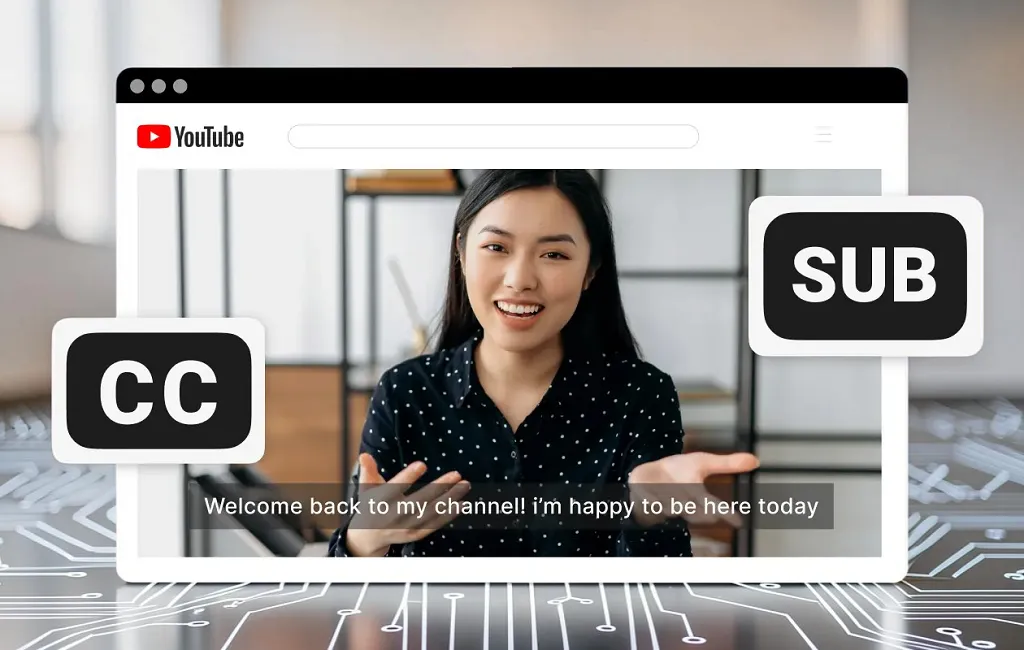
YouTube Studio allows us to add subtitles and captions from the Subtitles section, add languages, upload files, or edit captions directly.
Benefits of Subtitles
- Better accessibility
- Better comprehension
- More professional presentation
- Stronger usability for multilingual audiences
- More flexibility for viewers on mobile
For a Pakistani audience, subtitles can be especially useful when our content includes English, Urdu, or mixed-language explanations.
Manage Comments to Build Community and Trust
Growth on YouTube is not only about views. Engagement matters too. Comments show us what viewers think, what they want next, and what confuses them.
YouTube Studio includes comment moderation tools, moderator roles, blocked words, held-for-review settings, and comment filters. Official help explains that creators can choose moderation levels such as none, basic, strict, or hold all, and comments held for review remain in Studio unless approved.
How Comments Support Growth
Comments help us:
- Build relationships with viewers
- Find new content ideas
- Improve future videos
- Increase channel trust
- Encourage repeat engagement
Smart Comment Strategy
We should:
- Reply early after publishing
- Pin useful comments when needed
- Remove spam
- Use blocked words for abuse control
- Watch repeated viewer questions
Repeated questions often reveal missing explanations, which can become future video ideas.
Use Upload Defaults to Save Time and Stay Consistent
Consistency matters in channel management. If we repeat the same settings every time, upload defaults can save time and reduce mistakes.
YouTube Studio allows us to set default upload settings through Settings and Upload defaults. This includes basic info and advanced settings that apply automatically to future uploads unless changed later.
What We Can Standardize
- Basic description structure
- Tags or topic references where relevant
- Comment preferences
- Category
- Licensing and other recurring settings
This is useful when we publish regularly and want a more professional workflow.
A Simple Step-by-Step Method to Grow With YouTube Studio
Here is a practical workflow we can follow every week.
Before Upload
- Research the topic
- Create a clear title angle
- Design a strong thumbnail
- Prepare a useful description
- Assign the video to the right playlist
During Upload in Studio
- Upload the video
- Fill in title and description
- Check visibility settings
- Add subtitles if ready
- Review advanced settings
- Publish or schedule
After Upload
- Monitor CTR
- Watch audience retention
- Reply to comments
- Add cards and end screens
- Compare performance with older videos
- Update title or thumbnail if needed
Monthly Review
- Open Analytics
- Compare top and weak videos
- Find patterns in successful topics
- Study traffic sources
- Improve older high-potential videos
- Build more videos around winning themes
Common Mistakes to Avoid in YouTube Studio
Many channels fail to grow because they misuse the tools.
Mistake 1: Only Checking Views
Views alone do not tell the full story. CTR, retention, and returning viewers matter more for decision-making.
Mistake 2: Ignoring Old Videos
Older videos can often grow again after better titles, thumbnails, playlist placement, or stronger end screens.
Mistake 3: Publishing Without Channel Structure
A messy homepage and weak playlist system reduce binge potential.
Mistake 4: Not Using Analytics Comparisons
Without comparing videos, we may repeat bad formats or miss successful patterns.
Mistake 5: Neglecting Comments and Subtitles
Both improve viewer experience and channel quality.
Best YouTube Studio Features for Small Channels
If our channel is still small, these are the most important features to focus on first:
| Priority | Feature | Why It Helps Small Channels |
|---|---|---|
| High | Analytics | Helps us stop guessing |
| High | Content optimization | Improves each upload |
| High | End screens | Pushes viewers to the next video |
| High | Playlists | Builds topic clusters |
| Medium | Subtitles | Improves usability |
| Medium | Comments moderation | Builds trust and engagement |
| Medium | Upload defaults | Saves time and improves consistency |
We do not need to master everything at once. We only need to use the most important features consistently.
Final Thoughts on YouTube Studio
YouTube Studio is not just an upload panel. It is a growth system. When we use it properly, we can understand our audience better, improve our content packaging, increase watch time, strengthen topic authority, and build a more professional channel.
The biggest advantage of YouTube Studio is that it turns channel growth into a repeatable process. We can publish, measure, learn, improve, and publish again. That cycle is what helps channels grow over time.
So, if we truly want to grow on YouTube, we should not treat Studio as a place to upload and leave. We should treat it as the place where strategy happens. The more carefully we use Analytics, playlists, end screens, subtitles, comments, customization, and upload defaults, the better our chances of building a channel that keeps growing.
Also read: Ideas to Make Money on YouTube without Showing Your Face
Leave a Reply