
If you want to download YouTube video you uploaded, the safest and easiest method is to use YouTube’s own built-in download option in YouTube Studio or the YouTube/YouTube Studio mobile apps. On desktop, YouTube says your downloaded file will be an MP4 in either 720p or 360p, depending on the video size. You can also use Google Takeout if you want to export all uploaded videos from your account.
To download a YouTube video you uploaded, sign in to YouTube Studio, open Content, find your video, open the Menu, and choose Download. On Android or iPhone, you can use the YouTube Studio app or, on iPhone, the regular YouTube app’s Your Videos area. YouTube also limits downloads of the same video to five times in 24 hours.
Downloading your own uploaded videos is useful for backup, re-editing, republishing, archiving old content, or keeping a local copy before you delete or change a video. It is also one of the simplest ways to protect yourself from accidental loss, because YouTube does not let you replace a video with the same URL later. If you delete a video, it is permanently deleted, so keeping a backup matters.
What YouTube allows?
YouTube does let creators download videos they uploaded themselves. It does not let you use this creator download feature for other people’s videos. For videos you uploaded, YouTube’s official help page says you can download them directly, and on desktop the file is provided as MP4 in 720p or 360p depending on the video size.
That makes this topic different from general “download YouTube videos” guides. Here, we are talking specifically about retrieving your own content from your own channel, using official YouTube tools.
How to download YouTube video you uploaded on a computer?
This is the best method for most creators because it is direct, official, and easy.
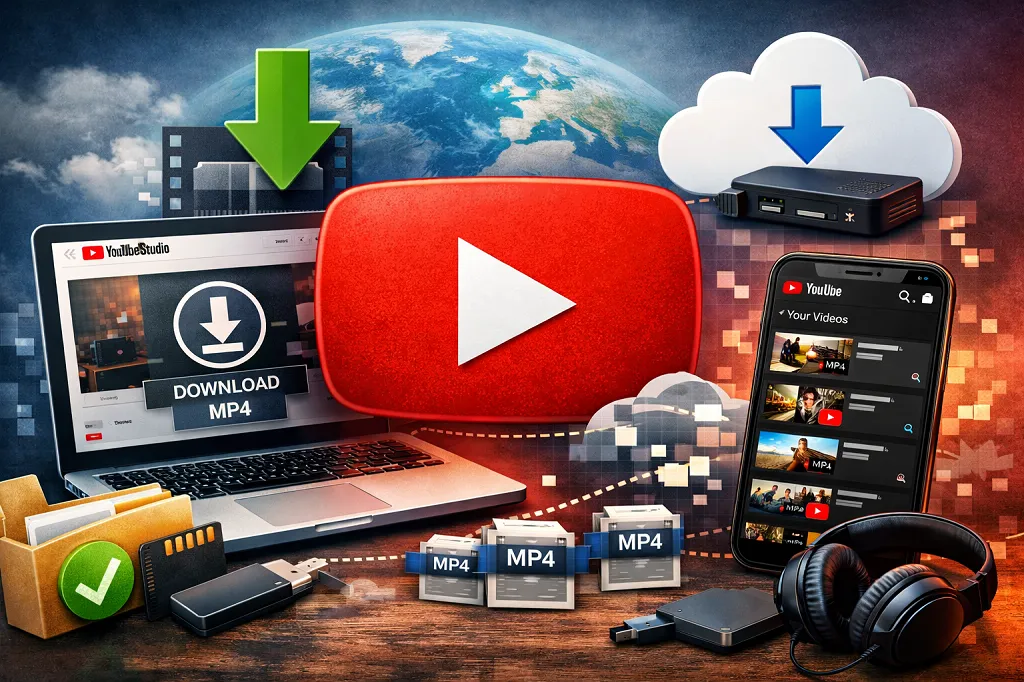
Step-by-step
- Sign in to YouTube Studio.
- From the left menu, select Content.
- Find the video you want.
- Open the Menu for that video.
- Click Download.
What file do you get?
YouTube says the downloaded file is an MP4, and on desktop it will be available in 720p or 360p, depending on the size of the original video.
If you trimmed or blurred your video in YouTube Studio, YouTube says you can download that edited version and upload it again if you want to publish the changes as a new file.
How to download YouTube video you uploaded on Android?
On Android, YouTube’s official help page points to the YouTube Studio app.
Step-by-step
- Open the YouTube Studio app.
- Tap Content on the lower menu.
- Tap the Shorts or Videos tab.
- Scroll to the video you want.
- Tap Menu and then Save to device.
This is useful when you need a quick copy of your content on your phone for sharing, editing, or temporary backup.
How to download YouTube video you uploaded on iPhone or iPad?
On iPhone and iPad, YouTube provides two official routes: the regular YouTube app and the YouTube Studio app.
Using the YouTube app
- Open the YouTube app.
- Tap your profile picture on the lower menu.
- Tap Your Videos.
- Now tap the Shorts or Videos tab.
- Find your video, tap Menu, and choose Save to device.
Using the YouTube Studio app
- Open the YouTube Studio app.
- Tap Content.
- Tap Shorts or Videos.
- Find the video.
- Tap Menu and choose Save to device.
When you cannot download your uploaded YouTube video?
This is where many articles are too vague. YouTube clearly lists several cases where the download option may not work.
You cannot download the video if:
- the video has been removed from YouTube
- the video has a copyright strike
- it has a Community Guidelines strike
- the video uses a preapproved audio track
- you already downloaded that specific video five times in the last 24 hours
That final point matters more than many creators realize. The restriction is not unlimited repeated downloading. YouTube says an individual video can only be downloaded up to five times per day, and the option returns after a day passes.
If the download option is missing
If you do not see Download or Save to device, check these common causes first:
1. You are in the wrong account
Many creators manage more than one channel. If your videos are tied to a Brand Account, Google notes that you may need to switch accounts to find all your YouTube videos in Google Takeout. The same practical issue can affect how you locate your channel content generally.
2. The video has a restriction
A strike, removal, or preapproved audio track can block downloading.
3. You already hit the daily limit
If you downloaded the same video several times while testing, you may need to wait until the 24-hour window passes.
4. You are looking for a different kind of download
Some users confuse:
- downloading their own uploaded source video
- saving videos for offline viewing
- downloading other creators’ content
These are different features. YouTube’s creator download option is for your own uploads. Offline viewing is a separate feature linked to YouTube app downloads and, in many cases, YouTube Premium.
Use Google Takeout if you want all uploaded videos
If you want more than one video, or want a broader backup of your account data, Google Takeout is often the better option. YouTube’s help page explicitly says you can use Google Takeout to download all the videos you’ve uploaded. Google’s Takeout help page also confirms that YouTube videos are part of exportable Google data.
When Google Takeout is better than YouTube Studio
Google Takeout is especially useful when you:
- want a full archive, not one file at a time
- want a backup before changing or deleting older content
- manage a large channel library
- are preparing for account cleanup or migration
- want exports delivered to email, Drive, Dropbox, OneDrive, or Box
Important caution
Google notes that risky-looking account actions may be delayed or unavailable for security reasons. It also notes that if you cannot find some YouTube videos, you should check whether they belong to a Brand Account.
Best practices for backing up your uploaded YouTube videos
Keep at least two copies
A practical setup is:
- original project file or export on your computer
- second copy on external storage or cloud backup
- YouTube upload as distribution, not your only archive
Organize files clearly
Use a naming system like:
channel-name_video-title_dateshorts_2026-03_topicfinal-upload_v1
That makes it easier to locate the correct version later.
Back up before major edits
Before trimming, blurring, deleting, or repurposing content, save a copy first. This matters because deleted videos are permanent, and edited workflows can create confusion about which version is the latest.
Common mistakes to avoid
Assuming YouTube stores your best master forever
YouTube is a publishing platform, not a perfect archival system for your production masters.
Waiting until a policy issue happens
Once a video is removed or struck, downloading may no longer be available.
Deleting before confirming backup
YouTube says deleted videos are permanently deleted. Confirm your local copy actually opens and plays before you remove anything.
Confusing offline viewing with creator downloads
Offline viewing and creator downloads are separate features with different rules.
Is it legal to download YouTube video you uploaded?
In general, downloading your own uploaded videos from your own channel using YouTube’s official tools is the intended use case described by YouTube’s help pages. The copyright concern mainly applies to downloading content uploaded by other people without permission. YouTube explicitly says you cannot use this creator download feature for other users’ videos.
That said, ownership can still get complicated if your video includes licensed music, third-party footage, agency-owned material, or client-owned assets. In those cases, you may have the right to access your own upload, but you still need to respect the licensing terms governing reuse outside YouTube.
FAQ
Can I download YouTube video I uploaded without YouTube Premium?
Yes. For your own uploaded videos, YouTube provides an official download option through YouTube Studio and also mobile apps. That is separate from YouTube Premium offline viewing.
Can I download my uploaded YouTube video in 1080p or 4K?
YouTube’s official desktop help page says downloads are available as MP4 in 720p or 360p, depending on video size. Moreover, it does not promise higher-resolution downloads through this built-in method.
Why does YouTube say I cannot download my own video?
Common reasons include removal, a copyright strike, a Community Guidelines strike, a preapproved audio track, or hitting the five-download limit within 24 hours.
Can I download all my uploaded videos at once?
Yes, Google Takeout is the best official option when you want to export all the videos you uploaded rather than downloading them individually.
Can I replace a video after downloading and editing it?
Not exactly. YouTube says you cannot replace a video because a new upload gets a new URL. You can modify some aspects of the existing video in YouTube Studio, but a true replacement requires re-uploading.
Does downloading my own video affect views or rankings?
Downloading your own uploaded video does not itself remove it or change its public availability. The bigger risk comes from deleting and re-uploading, because the new upload gets a different URL.
Final thoughts
If you need to download YouTube video you uploaded, the best approach is to start with YouTube Studio for quick single-video access and use Google Takeout for full-library backups. That gives you both convenience and long-term protection. Most importantly, do not treat YouTube as your only archive. Keep your own backup copies before a strike, deletion, or editing decision turns a simple task into a recovery problem.
Also read: How to Download YouTube Videos Online | YouTube Premium
Leave a Reply